
A free PDF can help earn indirectly by attracting prospects, while a paid PDF earns directly only when readers see enough value to buy it. If you create resources for a business, the choice affects how readers encounter your work and whether you can follow up by email. Neither option guarantees more income without a useful offer and a way to reach buyers.
A lead magnet is a free resource offered in exchange for an email signup or another audience action. A paid PDF product instead charges readers for the document itself. The software you use to create or manage either document is a separate cost and choice.
Key Takeaways
- A free document can attract prospects and support later sales.
- A paid document can generate revenue directly from each sale.
- Audience fit and usefulness matter more than the price label.
- Free and paid software can both create documents sold or shared with readers.
- A subscription is a software cost, not a document pricing model.
Treat the document’s business model and the software used to produce it as two separate decisions.
Free vs Paid PDFs: What Are You Comparing?
A PDF can be free to download even when the software used to create or edit it is paid. The price of a document and the price of the editor are separate questions, so compare them as different decisions.
PDF is a file format, not a pricing model. You can share a free PDF or sell a paid PDF product, and you can make either one with free or paid PDF tools. The reader’s cost does not reveal what software created the document.
Acrobat Reader is a free option for viewing, printing, commenting on, filling out, and signing PDFs in 2026. It does not include desktop editing, so it cannot replace a PDF editor when you need to change document text on a computer.
Some free tools handle basic tasks, while paid PDF software may provide more editing capabilities or services. Those differences affect your workflow, not the format’s price. Check whether a cost belongs to the document or to the software before comparing offers.
Can a Free PDF Lead to More Revenue Than a Paid One?
A free PDF can earn more indirectly when it brings qualified prospects to an offer, while a paid PDF earns directly when readers buy it. A free lead magnet can prompt an email signup or introduce a paid offer; a paid PDF product brings in revenue from each sale.
The useful signal is the reader’s next action, not the document’s price alone. A free download is useful when it attracts the right audience. A paid document needs value a reader can recognize before buying.
| Model | Reader price | Creator’s revenue path | Useful signal |
|---|---|---|---|
| Free PDF | $0 | Audience or lead generation | Email signups |
| Paid PDF | Creator-set price | Direct sales | Purchases |
For a business, audience fit matters as much as the document’s subject. A practical checklist that reaches likely customers may support a later offer, while a detailed guide may be valuable enough to sell on its own.
A free copy of a copyrighted commercial book is not automatically authorized for redistribution in the United States. Share only documents you own or have permission to distribute. Match the free or paid offer to the action you want the reader to take.
What Do Paid PDF Tools Cost in 2026?
In the United States in 2026, Adobe Acrobat Standard ranges from US$14.99 per month on an annual commitment to US$24.99 month to month. The annual option commits you to US$179.88, so its lower monthly rate is not the same as a flexible monthly plan.
Free vs paid PDFs cost can mean either a reader’s price for the document or a creator’s software bill, so compare those amounts separately. Adobe Acrobat’s plans differ by features and billing terms, and the selected plan sets the stated cost.
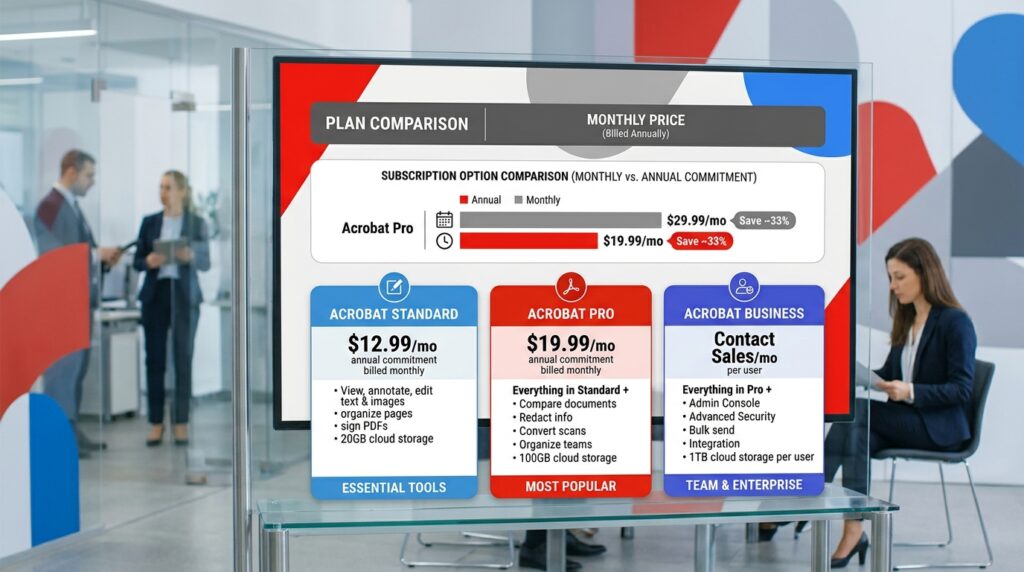
Adobe Acrobat plans for individual users
Acrobat Standard’s annual commitment costs US$14.99 per month, billed monthly, or US$179.88 for the year. Month to month, Standard costs US$24.99 monthly in the United States in 2026.
Acrobat Pro costs US$19.99 per month on an annual contract billed monthly, a US$239.88 annual commitment, or US$29.99 month to month. Acrobat Studio costs US$24.99 per month on an annual contract billed monthly and includes Acrobat Pro, AI Assistant, PDF Spaces, and Adobe Express Premium.
Lower-cost subscriptions and purchase checks
iLovePDF Premium is listed at US$5 per month when billed annually, with unlimited processing across web, mobile, and desktop. Its Free plan offers essential tools but limits document and batch processing; it states no numeric free-tier limit. Eligible students and academic professionals can receive one year of Premium free.
Smallpdf Pro starts at US$12 per month, while its free version has limited features and file-size restrictions. ABBYY FineReader, known for OCR, lists Standard at US$99 per year and Corporate at US$165 per year. EaseUS PDF Editor lists US$49.95 per year or US$79.95 for a lifetime license; its free version adds watermarks to edited documents.
- Check whether the plan requires an annual commitment.
- Compare its month-to-month price with the annual rate.
- Review free-tier restrictions, including processing limits.
- Check whether exports carry a watermark.
Eligible US students aged 13 or older and teachers can get Adobe Creative Cloud for US$19.99 per month for the first year, including Acrobat Pro and more than 20 apps. Before entering payment details for a trial, check its end date and the cancellation terms.
Which Free PDF Tools Cover Everyday Editing?
For occasional edits, PDFgear’s browser editor offers a 100 MB file limit without a file-count or usage-time cap. The key distinction is that its online editor adds text boxes but cannot directly edit existing PDF text.
PDFgear’s desktop software can change or replace existing text, works offline, and has no stated file-size limit. Its online editor processes files locally in the browser and exports without a watermark. PDFgear is listed as free, with no signup, ads, premium plan, or purchase required in 2026.
| Tool | Access or limit | Editing fit |
|---|---|---|
| PDFgear online | 100 MB; no file-count or time cap | Add text boxes; cannot directly edit existing text |
| PDFgear desktop | Offline; no stated file-size limit | Change or replace existing text |
| Acrobat Reader | Free desktop app | View, comment, fill forms, and sign |
| Apple Preview | Free with macOS | Markup, forms, signatures, merging, and page order |
| iLovePDF Free | Limits document and batch processing | Essential PDF tools; no numeric limit stated |
Apple Preview does not edit existing PDF text. SimplePDF is free for personal use and allows three submissions per document. Canva’s free plan includes basic tools and 5 GB of storage; Canva Pro is listed at US$15 per person per month.
PDF Candy is listed as a free PDF editor with OCR, but its free trial offers only basic features and it does not support Mac. PDF Free Editor runs supported workflows in the browser and can edit existing text, sign, highlight, and add images without signup or a forced watermark.
The best free tool depends on the files and operations you need, not just the word “free.” Match the tool to the task, especially when changing existing text rather than adding a text box.
When Is Paid PDF Software Worth the Subscription?
Paid software is most defensible when it removes repeat work or provides a capability a free editor cannot handle. For complex work, OCR, redaction, and signature workflows can matter more than a long list of features.
Pay when a capability saves recurring manual effort or meets a clear business need. Repeated OCR on scanned documents, bulk processing, or careful redaction can make a subscription worthwhile when free tools fall short.

Advanced editing, OCR and signatures
Acrobat Pro adds OCR for scanned documents, redaction, PDF comparison, web forms, reusable e-signature templates, branded agreements, and bulk signature requests over Acrobat Standard. OCR, or optical character recognition, turns scanned text into searchable and editable content.
A typed or drawn electronic signature is not the same as a certified digital signature. Certified digital signatures use certificate-based methods to verify identity and document integrity, making them a more specialized requirement than signing a routine form.
ABBYY FineReader’s distinguishing strength is OCR. Its 2026 listings are US$99 per year for Standard and US$165 per year for Corporate, which may suit repeated work with scanned documents.
Team licenses and workflow automation
Adobe’s public US pricing lists Acrobat Standard for teams at US$16.99 per user per month in May 2026. A separate 2026 pricing guide lists US$14.99 per month per license when billed annually. Acrobat Pro for teams is listed at US$23.99 per user per month.
Acrobat Sign Solutions uses sales-led custom pricing rather than a self-serve public price. PDFCreator offers shared Free and Professional features; Professional adds group policies, C# scripts, user tokens, and forwarding a job to another profile.
Professional also adds shared settings, offline activation, priority email support, and 256-bit rather than 128-bit AES encryption. Four useful triggers for paying are:
- Repeated OCR on scanned documents.
- Complex text editing that a free editor cannot handle.
- Bulk processing or signature workflows.
- Centrally managed settings across a team.
Price the annual commitment against the hours and manual steps the workflow actually removes.
What Privacy and Accessibility Risks Should You Check?
A document’s privacy risk depends partly on where its files are processed and who can access them. Cloud processing can require uploading documents to a service, while browser-local or offline workflows can reduce that exposure.
Check the processing location and the service’s data-retention terms before handling sensitive files. Password protection can restrict access, but it is one tool, not a complete security review. Consider who holds the password and how the file moves after export.

File handling and sensitive information
PDF tools differ in how they handle files. A browser-local editor may process a document on your device, while a cloud service may send it to its servers. Offline software can avoid an upload for the editing step, but you still need to assess storage and sharing practices.
Review the service’s retention practices and access controls, especially when documents contain customer data, financial details, or signatures. Password protection does not answer whether a provider keeps uploaded files or who can view them.
Accessibility rules for public entities
The US Department of Justice Title II web-accessibility rule sets WCAG 2.1 Level AA as the technical standard for state and local government web content and mobile apps, with limited exceptions. The April 20, 2026 interim final rule sets different compliance dates by population.
State and local government entities with populations of 50,000 or more have until April 26, 2027, to comply. Entities below 50,000 and special district governments have until April 26, 2028.
The archived-content exception applies only when content predates compliance or reproduces older physical documents, is kept only for reference, research, or recordkeeping, sits in a designated archive area, and remains unchanged after archiving.
There is no blanket reason to stop using PDFs, but public-facing documents should be accessible. An HTML alternative can help when users need reflow or easier navigation. Check the applicable population deadline and each archived-content condition before relying on an exception.
How Should You Choose a PDF Offer and Editor?
Choose the document’s revenue model first, then pay for software only if its capabilities match the work. A free PDF suits reach, lead generation, or a low-friction first interaction; a paid PDF product fits distinct value buyers can assess before purchase.
Match the editor to the tasks you actually perform. Consider how often you work with PDFs, whether you need text editing, OCR, signatures, batch volume, privacy controls, or accessible documents.

A short test can expose limits that a feature list misses. Try a scanned file if OCR matters, a long document if page handling matters, and a form if signatures are part of the workflow.
Adobe Acrobat Pro and Studio offer seven-day free trials in the United States in 2026. Each trial converts to the selected paid subscription unless you cancel before it ends. PDFCreator offers a 30-day free trial.
Use this four-step checklist before choosing a subscription:
- Define the document’s purpose and the reader action you want.
- List the PDF operations you perform each month.
- Test representative files in a free option or trial.
- Check cancellation and file-handling terms before committing.
For a business, a free tool may handle occasional work, while recurring OCR or bulk operations can justify paid PDF tools. Keep the document offer separate from the software subscription in your budget.
Run one representative document through the intended workflow before committing to a recurring plan.
Conclusion
The better choice is the one that serves the intended reader and the work you actually need to do. Free PDFs can support audience growth, while paid PDF products can generate direct sales. Neither guarantees more income without an offer that fits an audience you can reach.
Start with the free tool that handles your current task. Pay only when a specific feature or workflow need justifies a subscription, rather than buying software for possibilities you may never use.
Test one free offer or editor workflow against a clear business goal before adding a new subscription.